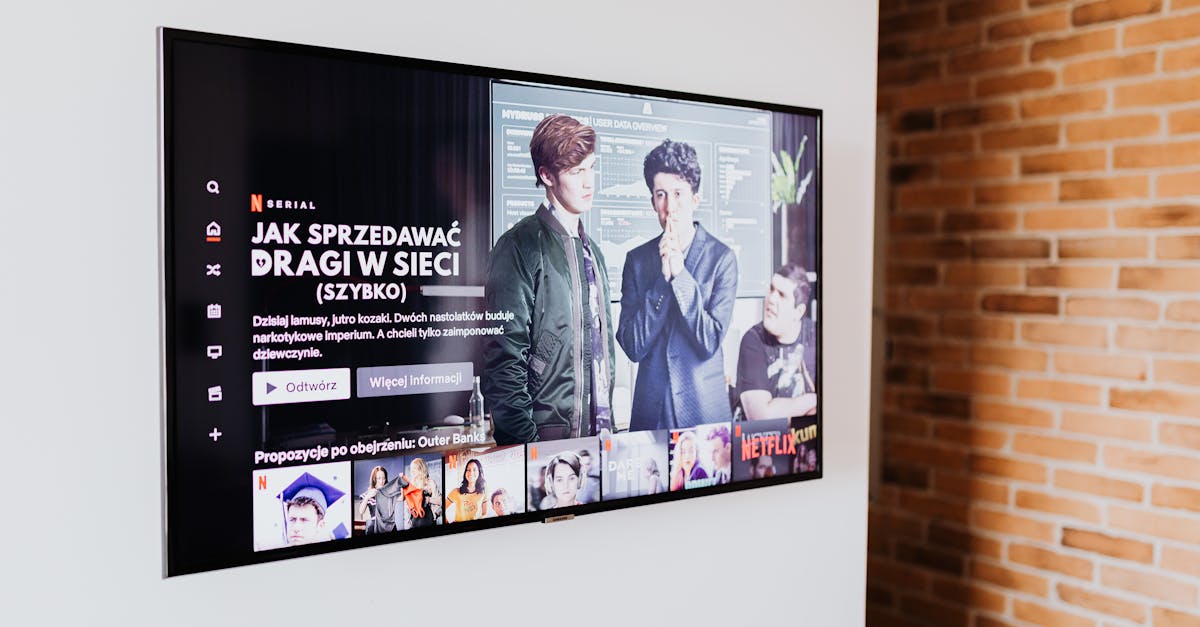
5 Counterintuitive Reasons Your Smart TV Is Slower Than Advertised
You bought a new smart TV, excited for crisp visuals and seamless streaming. The box promised lightning-fast performance, smooth app navigation, and an overall elevated entertainment experience. Yet, after just a few weeks or months, you find yourself staring at a loading spinner, frustrated by unresponsive menus, and wondering why your “smart” TV feels anything but. In my experience, the mistake I see most often is attributing this slowdown solely to hardware limitations or internet speed. While those can play a role, there are several less obvious, counterintuitive factors at play that silently choke your smart TV’s performance. Understanding these often-overlooked culprits can dramatically improve your viewing experience, making your TV feel as fast and responsive as it was on day one, without needing to buy a new device or upgrade your internet plan.
Key Takeaways
- Background app processes and unnecessary notifications silently consume system resources, slowing your smart TV.
- Outdated firmware often contains unpatched bugs that degrade performance over time, requiring manual updates.
- Over-reliance on the TV’s built-in app store leads to resource-intensive apps that a dedicated streaming device can handle better.
- Excessive cached data and insufficient internal storage contribute to noticeable lag and app crashes.
- Bluetooth and Wi-Fi interference from other devices create micro-stutters and delayed responsiveness.
Unseen Background App Processes and Notifications Silently Consume Resources
When you turn on your smart TV, you probably just want to launch Netflix or YouTube. What you don’t see are the numerous applications and system processes running in the background, constantly checking for updates, pushing notifications, or even pre-loading content for apps you rarely use. This is the digital equivalent of having twenty browser tabs open when you only need one. Each of these background operations, no matter how small, siphons off precious RAM and processor cycles, accumulating over time to create a noticeably sluggish interface. In my own home, I once spent a weekend systematically disabling every non-essential app and notification on my older smart TV. I found that a pre-installed news aggregator, a weather app, and even a manufacturer-branded content recommendation service were all running continuously, despite never being manually launched. The performance difference was immediate and significant. The menu navigation became fluid, and apps launched in half the time.
To combat this, dive into your TV’s settings – usually under “Applications,” “App Manager,” or “Privacy.” Look for options to “Force Stop” apps you don’t use regularly, or even better, “Disable” them entirely if your TV allows. Pay particular attention to apps that came pre-installed; these are often the biggest offenders. Additionally, seek out notification settings and turn off any alerts that aren’t absolutely critical. Most smart TVs have a setting to disable app update notifications, content recommendations, or even marketing messages from the manufacturer. By taking a proactive approach to what runs in the background, you free up your TV’s limited resources for what you actually want it to do: stream content flawlessly.
Outdated Firmware Often Hides Performance-Degrading Bugs
Many smart TV owners operate under the assumption that their devices update automatically. While this is often true for security patches, major performance-enhancing firmware updates sometimes require manual intervention or confirmation. Furthermore, new firmware versions, especially for budget or mid-range smart TVs, often contain unpatched bugs that accumulate over time. These bugs aren’t always catastrophic crashes; they can manifest as subtle memory leaks, inefficient resource allocation, or poorly optimized background tasks that slowly degrade overall responsiveness. I vividly recall troubleshooting a friend’s TV that was barely a year old but performed like it was five. After exhausting other options, we found a critical firmware update hidden deep within the settings menu that addressed known performance issues. The update wasn’t pushed automatically and required a series of manual steps.
Regularly check for firmware updates, even if your TV claims to be up-to-date. Navigate to your TV’s “Support,” “About,” or “System” settings and look for a “Software Update” option. Don’t just rely on automatic checks; sometimes, initiating a manual check will find an available update. If an update is available, read the release notes carefully to understand what improvements or bug fixes it offers. Beyond this, a complete power cycle – unplugging the TV from the wall for at least 60 seconds – can sometimes clear temporary glitches that even a soft restart won’t address. This hard reset clears residual electrical charges and forces the system to reboot cleanly, often resolving hidden performance bottlenecks that accumulate from prolonged uptime.
Over-Reliance on Built-In Apps Strains Limited Hardware
Smart TV manufacturers want you to use their built-in app ecosystem because it’s tied to their data collection and advertising revenue. However, the hardware inside most smart TVs, particularly in the entry-to-mid range, is often less powerful than a dedicated streaming device like an Apple TV, Roku, or Chromecast. The processor, RAM, and internal storage of a smart TV are designed to handle basic video decoding and a few simple apps, not to be a powerhouse multi-tasker. When you install numerous streaming apps, social media clients, or even light games directly onto the TV, you’re asking its limited hardware to do more than it’s truly optimized for. These apps, especially newer versions, become increasingly resource-intensive, leading to stuttering video, slow buffering, and frustratingly long load times. The most effective solution I’ve found for this issue is a counterintuitive one: bypass your TV’s smart features entirely.
Invest in a dedicated, external streaming device. Even an affordable streaming stick often boasts a more powerful processor, more dedicated RAM, and a more streamlined operating system than your TV’s built-in platform. By routing all your streaming through a separate device, you offload the heavy processing tasks from your TV. This allows your smart TV to focus solely on what it does best – displaying an image – while the external device handles app management, updates, and content rendering. Connect the streaming device via an HDMI port, and use your TV’s settings to default to that input. You’ll likely find that not only does your streaming experience become smoother, but your TV’s overall responsiveness improves significantly because its internal system is no longer bogged down by constantly running complex apps.
Excessive Cached Data and Insufficient Internal Storage Lead to Lag
Just like your phone or computer, your smart TV accumulates cached data from the apps you use. Every show you watch, every movie you stream, every website you visit through the TV’s browser (if it has one) leaves behind temporary files. This cached data is meant to speed up future access, but when it becomes excessive, or when your TV’s internal storage is nearing its capacity, it has the opposite effect. The TV’s processor has to work harder to sort through mountains of old data, leading to noticeable lag, slow app launches, and even unexpected crashes. Many people overlook this aspect, assuming that because they aren’t saving large media files, storage isn’t an issue. However, app updates, system logs, and cached content can quickly eat into the finite space available.
Regularly clear cached data for your apps. Access your TV’s app management settings (often found under “Applications” or “Storage”). Go through each app and look for an option to “Clear Cache.” Some TVs also have a global “Clear Cache” or “Optimize Storage” function in their main system settings. While clearing cached data won’t delete your login information or saved preferences, it will force the app to re-download necessary temporary files, which can sometimes take a moment. If your TV has expandable storage via a USB port, consider adding a low-profile USB flash drive for additional app storage. This offloads some of the burden from the internal memory, especially for larger apps, contributing to a snappier experience. Keep your TV’s internal storage at least 20% free to ensure optimal performance.
Bluetooth and Wi-Fi Interference Create Micro-Stutters
Your smart TV isn’t an island; it exists within a dense ecosystem of wireless devices in your home. Everything from your smartphone, tablet, smart speakers, wireless headphones, microwave oven, and even your neighbor’s Wi-Fi router can contribute to wireless interference. This interference might not be strong enough to completely disconnect your TV from the internet, but it can cause micro-stutters in streaming, delayed responses to remote control commands (especially Bluetooth remotes), and overall sluggishness in app performance. The 2.4 GHz Wi-Fi band is particularly susceptible to this, as many common household devices operate on the same frequency. I once spent days trying to figure out why my Bluetooth remote was so inconsistent, only to realize my wireless keyboard for my home office was creating intermittent interference on the same frequency.
To mitigate wireless interference, first ensure your smart TV is connected to your router’s 5 GHz Wi-Fi band if both your TV and router support it. The 5 GHz band offers faster speeds and significantly less interference, though its range is shorter. If you’re using a Bluetooth remote, try to minimize other active Bluetooth devices in the immediate vicinity of the TV. Consider using a wired Ethernet connection for your TV if possible, as this completely bypasses Wi-Fi interference for streaming and system updates. Additionally, physically relocate other high-bandwidth wireless devices, such as wireless phones or smart hubs, further away from your TV. You might also want to change your Wi-Fi channel on your router if you suspect interference from neighboring networks; most router interfaces allow you to scan for the least congested channels. These subtle adjustments can lead to a surprisingly smoother, more reliable smart TV experience.
Frequently Asked Questions
Why does my smart TV get slower over time, even with a fast internet connection?
Your smart TV’s slowdown isn’t always about internet speed. It’s often due to accumulated cached data, too many background apps, outdated firmware with unpatched bugs, or limited internal storage being overwhelmed. Even with gigabit internet, if your TV’s internal processor or memory is bogged down, the interface and apps will feel sluggish.
Should I buy an external streaming device, even if my smart TV has built-in apps?
Yes, I highly recommend it. Dedicated streaming devices like Roku, Apple TV, or Chromecast typically have more powerful processors and dedicated RAM than your TV’s built-in smart features. Offloading streaming tasks to these devices allows your TV to focus on displaying the image, resulting in a much smoother and more responsive user experience overall.
How often should I check for firmware updates on my smart TV?
While many TVs auto-update, it’s a good practice to manually check for firmware updates at least once every three to six months. Navigate to your TV’s system settings (often under “Support” or “About”) and look for a “Software Update” option. Don’t rely solely on automatic checks, as some critical updates may require manual initiation.
Is it safe to disable pre-installed apps on my smart TV?
Generally, yes. Most smart TVs come with several pre-installed applications for news, weather, or specific streaming services that you might not use. Disabling or force-stopping these apps frees up system resources and does not typically harm the TV’s core functionality. Always avoid disabling critical system services, though, which are usually clearly labeled.
Does connecting my smart TV via Ethernet make a big difference compared to Wi-Fi?
For performance and reliability, a wired Ethernet connection is almost always superior to Wi-Fi. It eliminates potential wireless interference, provides a more stable connection, and can reduce latency, which is particularly beneficial for high-bandwidth streaming and online gaming. If your router is close enough, using an Ethernet cable can noticeably improve your TV’s responsiveness and buffering times.
In conclusion, a slow smart TV is rarely a lost cause. By understanding these often-overlooked culprits and implementing the actionable strategies outlined above, you can often restore your TV to its optimal performance. A little proactive maintenance and strategic hardware choices can make a significant difference, transforming a frustrating viewing experience into one that’s smooth, responsive, and truly enjoyable.
Written by Liam O'Connell
Productivity, Time Management, Personal Finance
A former project manager turned freelance writer, Liam is obsessed with productivity systems and simplifying complex tasks.
You Might Also Like

The 20-Degree Rule for Home Heating and Cooling: Why Most Advice Misses the Mark
Discover why the conventional 20-degree rule for home heating and cooling often fails, and learn a more effective, personalized approach to energy savings and comfort.

A Beginner's Guide to Avoiding Common Home Composting Pitfalls
Learn the overlooked mistakes in home composting and how to create nutrient-rich soil effectively, reducing waste and boosting your garden.
A Beginner's Guide to Simple Home Network Security
Learn the essential, non-obvious steps to secure your home Wi-Fi and devices, protecting your data without needing an IT degree.